Digital family calendar: wall display or app?
By Babs Team · · Updated · 14 min read

A digital family calendar should show everyone in the household an accurate schedule. Yet 4th grade lacrosse practice can move from 5:00 to 6:00 in a TeamSnap email while the kitchen screen still shows 5:00. The right setup depends on where the schedule broke: your family may need a shared display for events already on the calendar, help finding the change in Gmail, or both.
Start with the part of the week that keeps failing
A digital family calendar may be a dedicated touchscreen, software on the phones you already own, or a setup that uses both. A wall display brings several calendars into one color-coded view, often with routines, meal plans, lists, or photos beside the week. A child can look up what happens after school, and a caregiver can find pickup time without opening someone else's phone.
That shared view works once the calendar is accurate. The earlier job is finding the half day in Gmail, deciding that it matters, and adding it before someone plans a dentist appointment at the same time. Sociologist Allison Daminger's household-work research describes household work as anticipating, identifying, deciding, and monitoring. A wall display helps with monitoring. The unread school email arrives earlier in the process.
If the family calendar on everyone's phone already has the right events and times, a wall display can make that information visible at breakfast and during the after-school handoff. If one parent still spends Sunday night searching email for field-trip deadlines and schedule changes, another screen will reflect only what that parent has found. Many households need both parts.
Help the existing calendar catch the email first
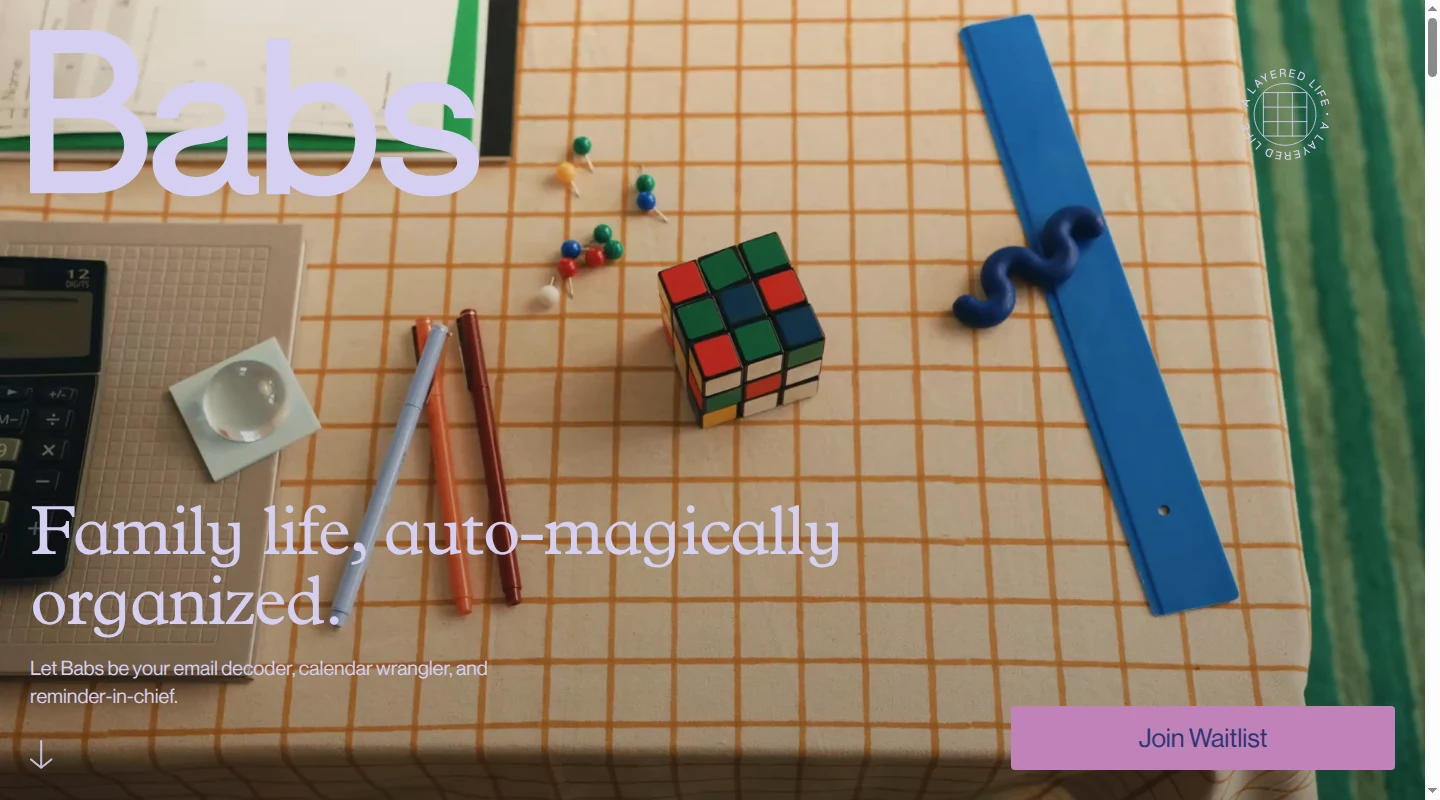
Shared visibility for the whole household starts before an event reaches the kitchen screen. Google Calendar or Apple Calendar is where a family's schedule lives. Babs is the family operating system for modern households. It finds what the calendar is missing and makes the existing calendar work better. Babs gives the household a proactive central repository for what is going on while the schedule stays in the family's chosen calendar.
A parent connects their Gmail or a shared family Gmail account. Babs then scans messages for relevant events and to-dos related to the children's schools and activities. During setup, a parent confirms household context about the children, schools, and activities. Those confirmations help Babs learn what matters to that household.
Babs handles the upfront work of finding events and to-dos that a parent would otherwise need to find and add manually. It gathers suggested events and to-dos for review, and a parent decides what to add. Babs does not add an event to Google Calendar or Apple Calendar without parent approval.
Babs is built for the household. Each parent gets a separate login and can see suggested events, to-dos, and the Lineup for their family. The Lineup previews the week ahead and helps the household know who needs to be where and when. Together, these views give the household shared visibility into events, to-dos, and the week ahead. Both parents can see that the class picnic form is due Thursday without one of them writing a separate recap.
Babs is free, available on iOS, and currently accessed through a waitlist. Babs scans Gmail today, so an Android-only household or a family that relies on another inbox needs a different route for that part of the week.
A wall display can sit downstream from Babs. This is interoperability through Google Calendar, not a native Babs integration with the display. When a parent approves a suggestion and adds it to a Google calendar the display is configured to show, every display in this comparison can show that event through its own Google connection. The difference is write-back: four offer two-way Google sync, while Hearth shows imported Google events as view-only and uses a separate Google subcalendar for Hearth-created events.
Digital family calendar comparison
The five options below are wall displays. Prices are current US direct prices, and sale prices or coupon codes can change.
| Wall display | Where it fits | Google Calendar route from Babs | Format and current direct price |
|---|---|---|---|
| Skylight Calendar 2 | A focused calendar children can check and use | Direct Google connection with optional two-way sync | 15-inch touchscreen with stand and wall mount; base Classic Black/White model is $299.99 with one free month of Calendar Plus, which renews at $79 a year, or $319.99 without Plus |
| Hearth Display | A large, child-friendly routine and calendar board | Direct Google connection; imported Google events are view-only on Hearth | 27-inch portrait wall display; currently $594.15 with code BTS26, $699 list |
| Everblog HomeCal | A shared calendar with food-inventory tools | Direct two-way Google sync in HomeCal calendar version 3.0.2 | 21.5-inch display with hanging strap; currently $349 sale, $699 regular; code BTS50 advertises another $50 off |
| Cozyla Calendar Plus 2 | A family calendar that also works as an Android hub | Direct two-way Google sync | 15.6-inch tabletop model, currently $297.50 sale, $349.99 regular; 24- and 32-inch wall models also available |
| Apolosign Digital Calendar | A family organizer with a separate full-Android mode | Direct two-way Google sync | 15.6-inch model with stand and wall bracket, $279 sale or $349 regular; 21.5-inch model, $379 sale or $449 regular; 27-inch models also available |
Give the screen a job in the room
A 15-inch display suits a counter where the person reading it will stand a few feet away. Screens from 21 to 32 inches are easier to read across a kitchen or mudroom and usually make more sense on a wall. Every option needs continuous power, Wi-Fi, and a sensible route for the cable. A larger model may also call for a recessed outlet or professional mounting.
Think about who will touch the screen. Profiles and routine checkoffs give younger children a place to participate without borrowing a parent's phone. Remote access matters when an adult needs to add tomorrow's dentist appointment from work.
Skylight Calendar 2
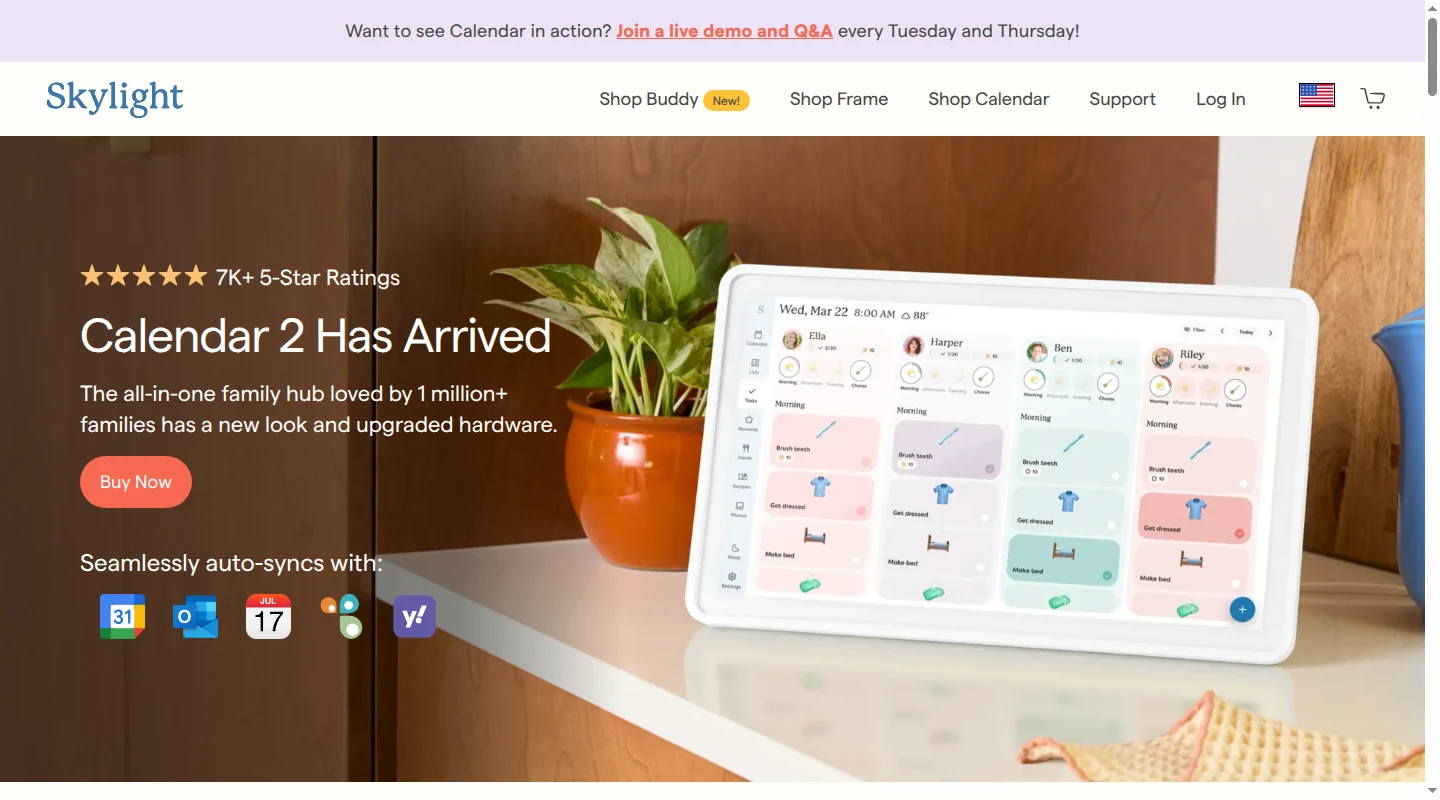
Skylight keeps the 15-inch screen focused on the family week, which is useful on a breakfast counter where a child wants today's answer at a glance. Color-coded profiles sit beside calendar views, touch-based tasks, custom lists, weather, and a parental lock. Children can use their profiles without email accounts. Another adult can manage the calendar through the mobile app or Skylight Cloud. The included stand and wall mount leave both placement options open, although the screen may feel small from across a large room.
Skylight can import selected Google calendars, so an event approved in Babs appears when it lands in a calendar Skylight is configured to show. For two-way Google sync, the adult chooses Two-Way Sync during setup. An event created on Skylight writes back only when the relevant synced Google calendar is selected, although the adult can set a default calendar in the Skylight app. Changes to that event then stay in sync across Google, Skylight, and the Skylight app.
Hearth Display
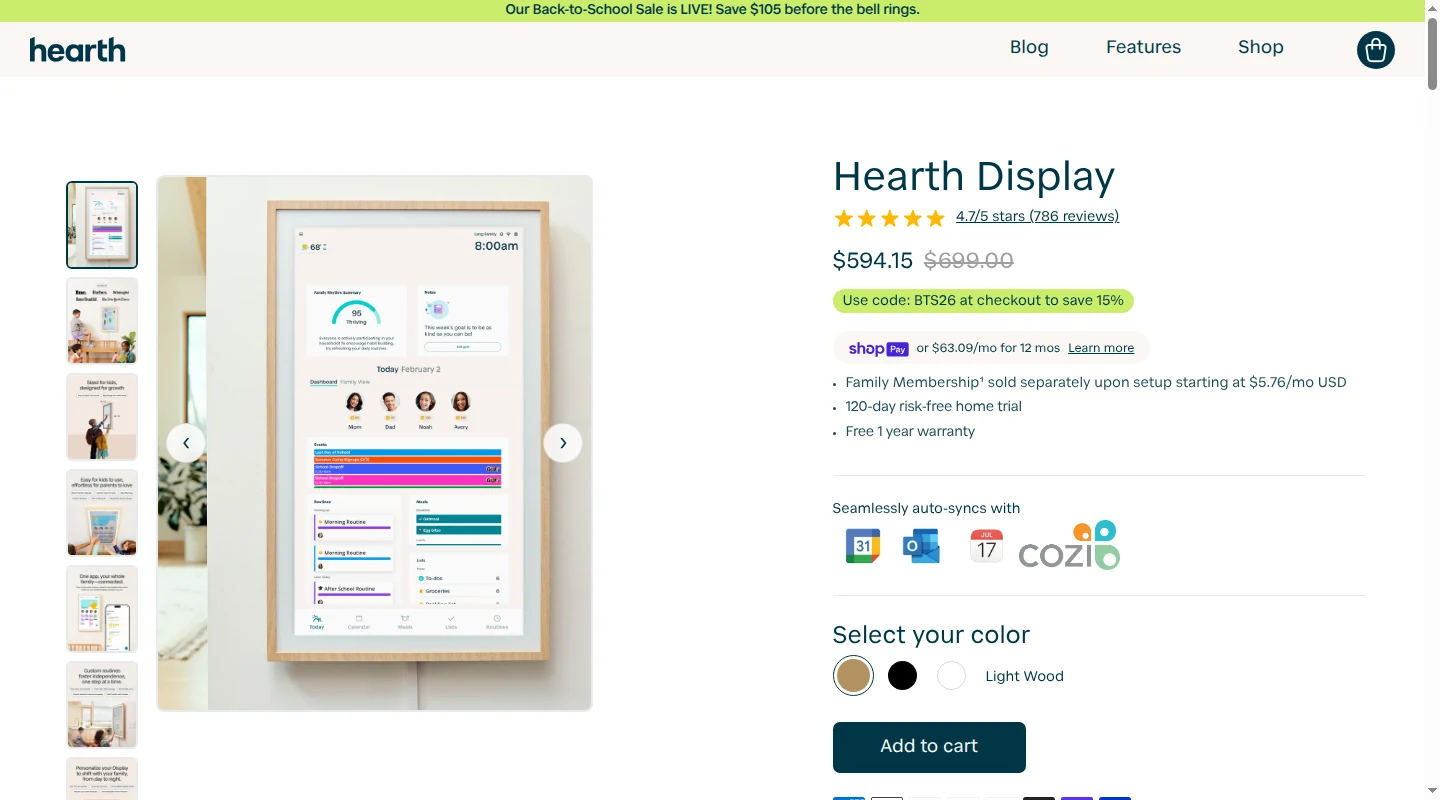
Hearth belongs on the wall near the place backpacks and shoes collect. Its 27-inch portrait screen puts child-facing controls lower down and parent controls higher up. Unlimited profiles can use kid-friendly icons, routines, feelings check-ins, and touch completion. An adult can update the display away from home through the paid companion app. The generous screen is easier to read across the room, though it asks for a permanent wall location and room in the budget for both the display and membership features.
With Hearth's Google Calendar setup, an account connects per profile and the adult chooses which Google calendars are visible. Events imported from those calendars, including an event approved in Babs, are view-only on Hearth. When someone first creates an event in Hearth, a separate Hearth Calendar subcalendar appears in Google. That subcalendar syncs both ways and can be edited in Hearth or Google.
Everblog HomeCal
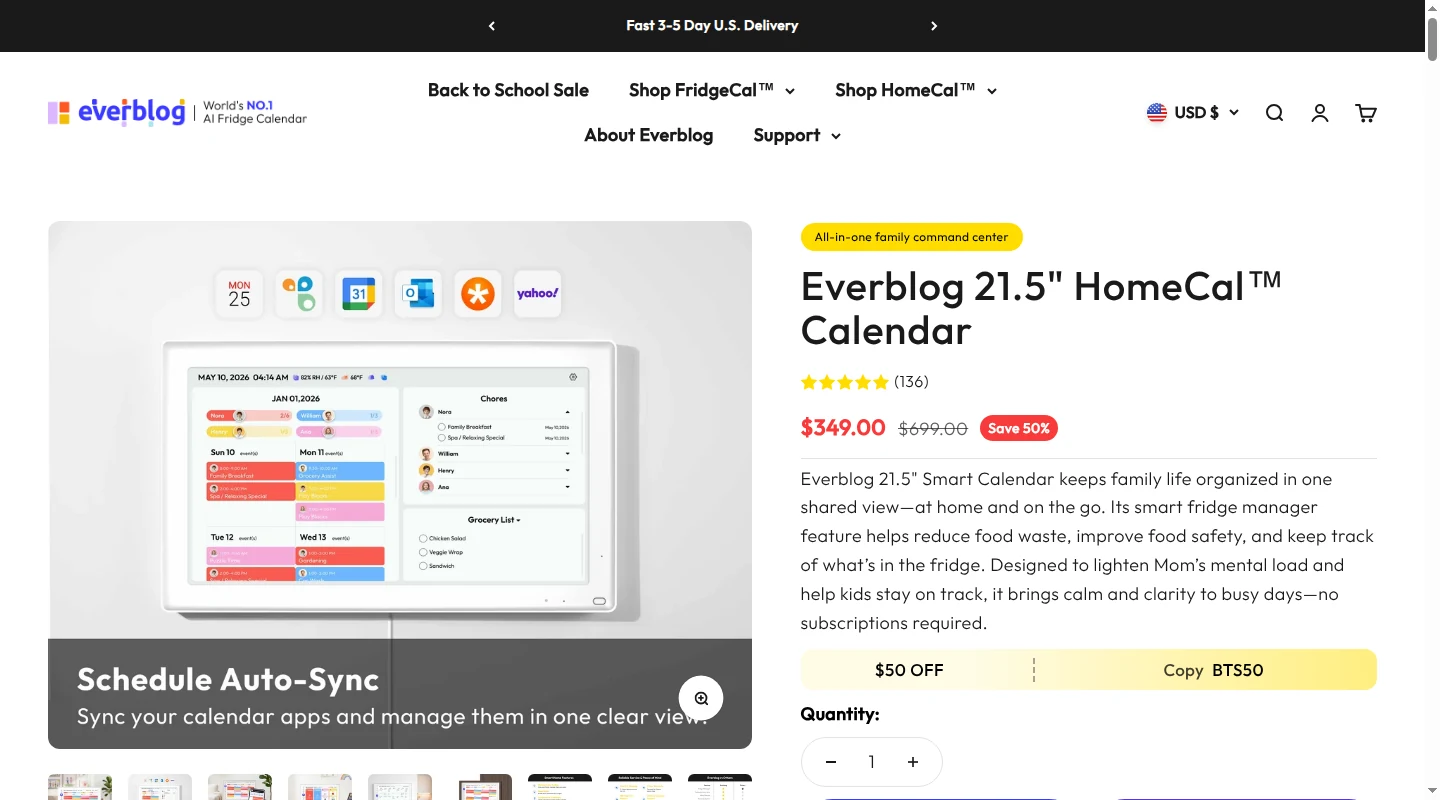
Everblog's 21.5-inch HomeCal is for the household that wants the grocery question on the same screen as Thursday's pickup. The shared calendar includes chores, rewards, meal plans, shopping lists, photos, weather, and reminders. Its fridge manager tracks food inventory and expiration dates. A hanging strap comes in the box, while the tabletop stand costs extra. From the companion app, an adult can add an event or task before getting home.
The HomeCal 3.0.2 update added two-way Google sync. An event approved in Babs can appear when it lands in a connected Google calendar, and supported changes can move between HomeCal and Google.
Cozyla Calendar Plus 2
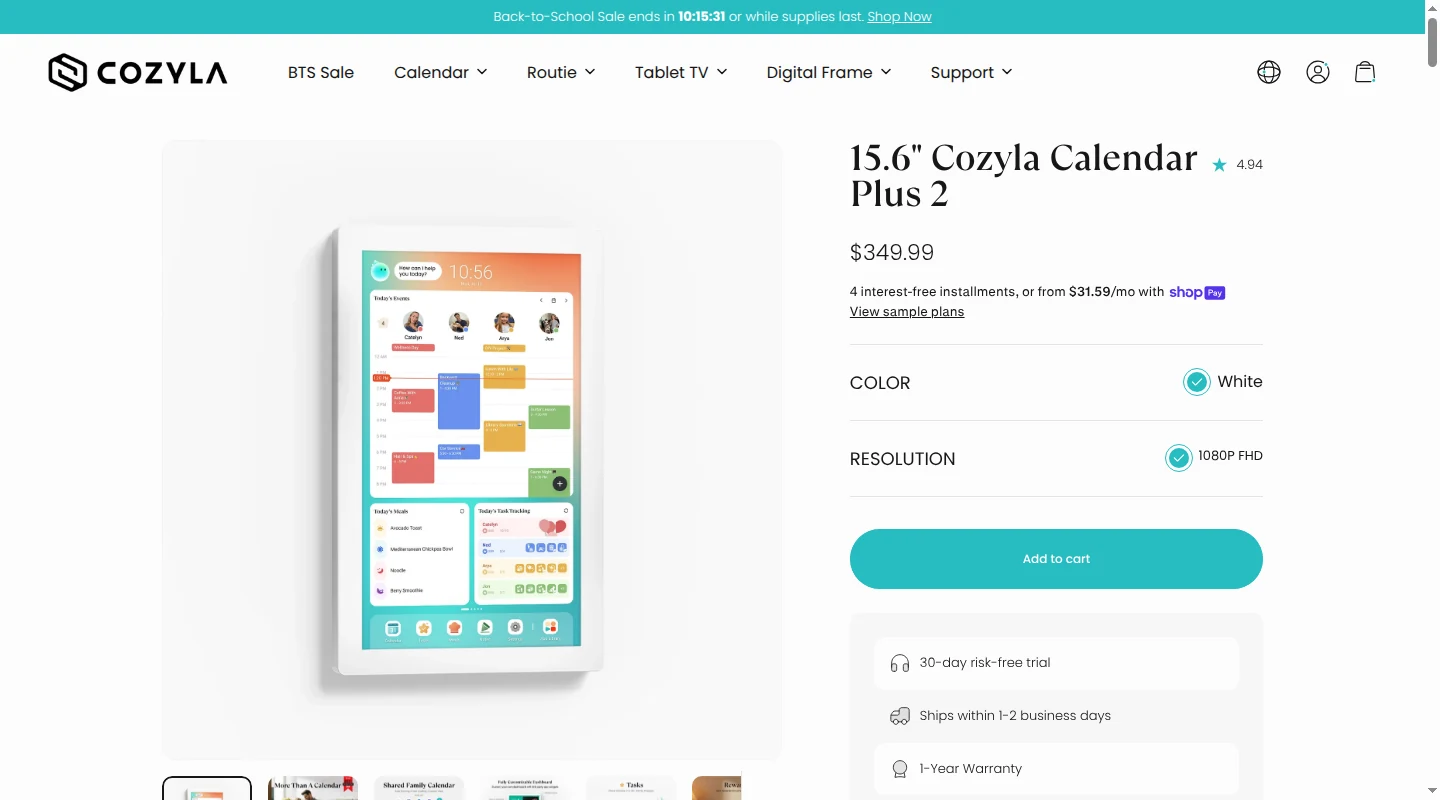
Cozyla makes sense when the kitchen screen also needs to run streaming or smart-home apps. CalendarOS handles schedules, tasks, meal planning, grocery lists, customizable widgets, and up to eight profiles, while the Android app store gives the display a second life beyond the family calendar. That flexibility brings more settings to manage. The 15.6-inch version sits on a tabletop; the 24- and 32-inch models use rotating wall mounts. Parents can make changes in the Cozyla+ phone app, and parental lock can require a PIN for selected apps, settings, and functions such as managing events.
Cozyla's two-way Google connection lets the adult choose the exact calendars to show, assign each one to a profile, and select the Google calendar that receives supported changes made in Cozyla. An event created on Cozyla must use the synced calendar to write back. Events approved in Babs appear when they land in one of the Google calendars selected for the display.
Apolosign Digital Calendar
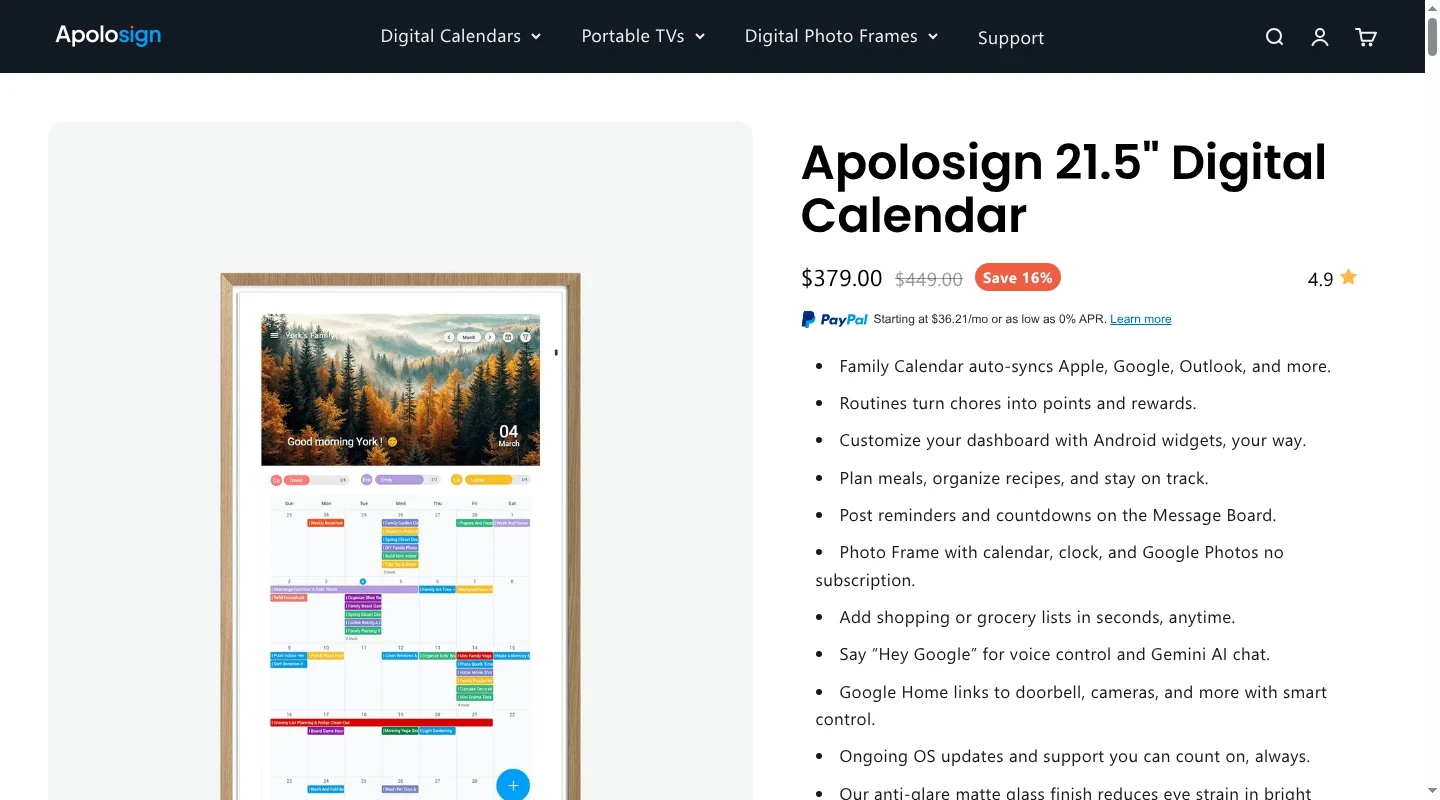
Apolosign lets the screen stay in a family calendar mode during the morning rush, then switch to full Android mode when someone wants Google Photos or smart-home controls. Calendar mode includes the household schedule, routines, to-dos, rewards, meals, a shopping list, and a message board. The 15.6-inch screen comes with a desktop stand and wall bracket. Its 21.5- and 27-inch versions come with wall mounts, including a 27-inch 4K option. App groups allow up to eight people, and an invited person can belong to more than one group.
Apolosign connects Google through an account sign-in in its phone app, where the adult selects calendars to display. Its documentation confirms two-way Google sync, so an event approved in Babs can appear from a selected Google calendar and an event created in Apolosign can return to Google.
Skylight, Hearth, and Everblog keep the display centered on the family week. Cozyla and Apolosign earn their extra settings when the household wants the screen to run other Android apps too.
Every display here can show an event approved in Babs
There is no native integration between Babs and any of these five displays. Google Calendar is the common bridge. The route has three parts:
- Babs finds a possible event or schedule change in Gmail and brings it to a parent for review.
- The parent approves it and adds it to the exact Google calendar where the family keeps that schedule.
- The display reads that calendar through its own Google connection and shows the event in the room.
No one has to forward the email to the display or type the event into a second calendar. The Google calendar has to match on both sides. A display connected only to a work calendar will leave events approved in Babs on the family's shared calendar out of view.
The word “sync” hides an important difference. Two-way sync lets a change on the display return to Google Calendar. Read-only sync still shows an event approved in Babs, but the adult edits it in Google Calendar rather than on the wall.
| Display | How Google Calendar works | Where edits go |
|---|---|---|
| Skylight Calendar 2 | Connect Google, choose the calendars to display, and choose two-way sync during setup if write-back is needed | A Skylight-created event returns to Google only when the relevant synced Google calendar is selected; changes then stay in sync across Google, Skylight, and the Skylight app |
| Hearth Display | Connect Google to a profile and select the subcalendars to show | Imported Google events are view-only on Hearth; Hearth-created events use a separate two-way Hearth Calendar inside Google |
| Everblog HomeCal | Connect Google in the companion app; HomeCal calendar version 3.0.2 supports two-way sync | Supported changes move between HomeCal and Google |
| Cozyla Calendar Plus 2 | Connect Google, choose calendars, map them to profiles, and set the sync target | Supported Cozyla changes return to the selected Google calendar |
| Apolosign Digital Calendar | Sign in to Google in the mobile app and select the calendars to show | Google and Apolosign events sync both ways |
The display does not need a Babs app. It reads the approved event from Google Calendar, while Babs handles the earlier work of finding what belongs there. That shared Google calendar is the whole connection between the two tools.
Who notices the 6:00 schedule change?
Import tools save retyping after someone has found the information. Skylight Plus accepts forwarded emails and PDFs, plus uploaded flyers and screenshots. Magic Import sends a processing confirmation to the person who submitted the item, and that person can reverse the import from the email. Cozyla Smart Import starts with a photo or event URL.
Hearth Helper proposes a calendar event from a photo and leaves approval with a parent. Everblog accepts forwarded emails, photo scans, voice input, direct screen entry, and companion-app updates. Apolosign relies on entry through the touchscreen or phone app.
The trigger is the meaningful difference. A photo import starts once the permission slip is in hand. Forwarding starts after someone spots the email. Babs starts earlier. Once a parent connects Gmail, Babs scans messages for relevant events and to-dos related to the children's schools and activities instead of waiting for someone to find and forward each item. Parent-confirmed household context helps Babs learn what matters to the family. If 4th grade lacrosse practice moves from 5:00 to 6:00 or a tutor cancels, Babs flags the new details so a parent can review them and keep the family's Google Calendar or Apple Calendar current.
When Google Calendar is the destination, every display above can pick up the approved change through its Google connection. The practical question is whether the tool helps find the 6:00 update or waits for someone to notice it first.
Count the software after the screen purchase
Skylight's lower Calendar 2 hardware price applies to the base 15-inch Classic model in Black or White and comes with a condition. The $299.99 option requires taking one free month of Calendar Plus. Plus then renews at $79 a year unless canceled. The same base hardware costs $319.99 when purchased without Plus. Core calendar features remain available without the subscription, while Plus adds Magic Import, meal planning, rewards, and photo screensavers. Keeping Plus for three paid years adds $237 to the hardware cost.
Hearth setup includes a Family Membership selection and begins with a 30-day trial. Membership pricing is $9 month to month, $86.40 for one year, or $207.36 for three years prepaid. Paying annually for three years totals $259.20. Membership covers routines, to-dos, lists, rewards, meal planning, Hearth Helper, and remote app access. The core calendar remains after cancellation.
Cozyla Calendar Plus 2 includes its core calendar, chore, reward, meal, photo, and Smart Import features. Its optional Calendar Super plan expands voice-agent use and adds an art gallery plus Routie benefits. Apolosign includes its core family-calendar software without a subscription, and Everblog includes its current family features with the hardware.
Choose the setup that fixes the handoff
When the calendar on everyone's phone is already accurate, a wall display gives those events a physical home. Put it where the family naturally looks before leaving, with interactive controls in reach of the children who will use them and the power cord secured.
When Sunday night still depends on one parent searching Gmail for the field-trip deadline, the missing work comes earlier. Babs handles the upfront work of finding relevant events and to-dos in Gmail, then brings its suggestions to a parent for review. The family keeps control of the calendar because a parent decides what gets added.
Babs and a wall display handle different parts of the same handoff. Each parent can use a separate Babs login to see suggested events, to-dos, and the Lineup for their family. The Lineup previews the week ahead and helps the household know who needs to be where and when. Google Calendar or Apple Calendar remains the home of the family schedule, and the wall display gives its approved events a shared place in the room.
All five displays in this comparison work with Babs through Google Calendar. Hearth asks the adult to edit an imported Google event in Google Calendar; the other four support edits in both directions.
A spare iPad offers a lower-cost shared screen through services such as Mango Display or DAKboard. It still needs a secure mount or stand, continuous power, Wi-Fi, and settings that keep the calendar available without exposing the rest of the device. For a phone-first setup, the family calendar app guide compares options without wall hardware.
After Babs flags that practice moved from 5:00 to 6:00 or the tutor canceled, a parent can review the new details and keep the family's Google Calendar or Apple Calendar current. With Google Calendar, any of the five displays above can then put that approved change where the household will see it.
If finding the update is still one parent's job, join the Babs waitlist.
Related articles

Family organization · Babs
Adjoining rooms vs connecting rooms for a family stay
Compare adjoining and connecting hotel rooms, suites, and vacation rentals by sleep layout, total cost, daily work, and flexibility for a family stay.

Family organization · Babs
Family trip planning without one person carrying it all
A practical way to share the decisions, bookings, packing, changes, and return home when you plan a family trip.