ChatGPT parental controls: the settings and their limits
By Babs Team · · 8 min read

If your teen uses ChatGPT, you may want to set limits on when they can use it and which features are available. Before you link your accounts, it helps to understand what those settings change, what stays private and what a safety alert can tell you.
What ChatGPT parental controls let you do
ChatGPT parental controls connect your account to your teen’s separate account. You can then manage selected features, schedule times when ChatGPT is unavailable, and receive limited safety notifications. You cannot see their conversations, chat history or real-time activity.
One parent or guardian can link with several teens. Each teen can link with only one parent or guardian at a time. In a household with two parents and multiple children, each teen’s controls are managed through one adult’s account.
Your teen can see the settings you manage, although they cannot change them while the accounts remain linked. Either of you can end the connection.
Age rules and built-in teen protections
ChatGPT is not intended for children under 13. Teens under 18 need a parent or guardian’s permission to use it. Linking accounts does not create an under-13 account option.
ChatGPT for Teens is the regular service with age-appropriate protections and learning features, available to eligible teen accounts on Free and paid personal plans. It turns on automatically when account age information, age verification or age prediction identifies an eligible account as under 18. Parental linking is an additional, optional step.
Built-in teen protections can apply without a linked parent. Linking lets you manage selected settings and receive safety notifications.
How to link your account to your teen’s
Use ChatGPT on the web, signed in to your own account:
- Open your profile menu, then Settings > Parental controls.
- Choose Add family member.
- Choose Use phone or Use email, enter your teen’s details, and select Send.
- Your teen accepts the invitation in their own ChatGPT account. They can also find it under Settings > Parental controls > Accept invite.
- Back in your account, select your teen’s name under Family members to manage their settings.
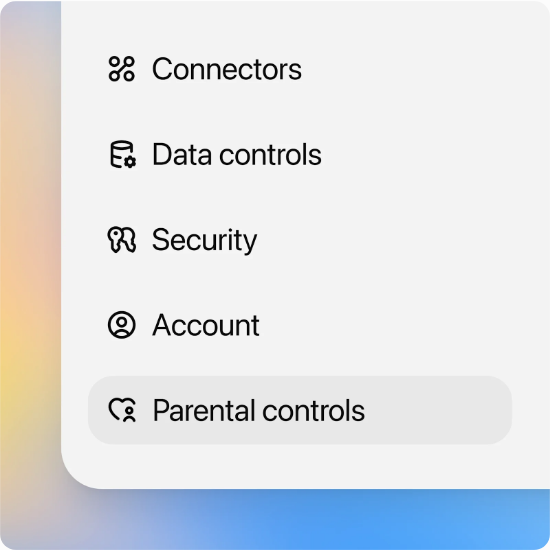
A teen can also start the invitation through Settings > Parental controls > Invite a parent.
When an invitation will not connect
If the invitation opens ChatGPT without an acceptance screen, your teen can sign in on the web to the personal account that received it, then accept it under Settings > Parental controls.
To resend it, select the person marked Invitation sent, then Resend invitation. Cancel and replace invitations sent to the wrong address or number; send a new one if it expired.
The settings you can manage
Open Settings > Parental controls, then select your teen under Family members. The controls work separately, so turning one off does not necessarily affect the others.
| Setting | What it changes |
|---|---|
| Reduce sensitive content | Adds safeguards around age-inappropriate content. On by default. |
| Improve the model for everyone | Controls whether your teen’s conversations can help train OpenAI’s models. On by default. |
| Reference saved memories | Lets ChatGPT use saved details to personalize replies. Usually on where available; regional defaults can differ. |
| Health | Makes the Health feature and supported health-data connections available to eligible teens. On where available. |
| Codex network access | Allows code running in ChatGPT Work to connect to online services. On by default. |
| Cloud browser | Lets ChatGPT Work visit public websites through its built-in cloud browser. On by default. |
| Voice Mode | Makes voice conversations available. On by default. |
| Image generation | Allows image creation and editing, including in ChatGPT Work. On by default. |
| Study mode | Starts eligible new chats in study mode. Off by default. |
| Study hours | Schedules when eligible new chats start in study mode. Off until scheduled. |
| Quiet hours | Schedules when your teen cannot use ChatGPT, including ChatGPT Work. Off until scheduled. |
Some changes take time or apply only to new conversations. An existing chat can continue with its previous settings.
Sensitive content: an extra safeguard, with limits
Reduce sensitive content limits responses involving graphic violence, risky viral challenges, sexual or romantic roleplay, and extreme beauty standards, among other sensitive subjects. It cannot guarantee that every response will be appropriate.
Teens cannot turn this safeguard off while teen protections apply. A linked parent may be able to turn it off, but that removes only this particular safeguard. Other teen protections and age-based feature restrictions still apply.
Memory and model training are separate choices
Memory lets ChatGPT use saved details to personalize future replies. The model-training setting controls whether conversations can be used to improve OpenAI’s models. You can manage these settings separately.
Turning off model training does not delete chats. Turning off memory does not delete past conversations either. Neither setting gives you access to the teen’s history.
Health access does not let you read health conversations
Turning Health on lets your teen choose supported data sources and complete their own connection permissions. It does not connect those sources automatically or let you read their health data.
Turning Health off disconnects Health and deletes synced health data. Existing chats remain. If you turn it back on, your teen needs to reconnect Health and their data sources; old synced data is not automatically restored. The setting also does not stop general health questions in ordinary ChatGPT conversations.
ChatGPT Work has two separate internet controls
ChatGPT Work handles longer tasks such as researching a topic or creating a report. Codex network access controls whether code running in Work can connect to online services. Cloud browser controls whether Work can use its built-in browser.
Turning off Codex network access leaves Cloud browser unchanged. It also does not disable ChatGPT search, apps or plugins. These controls do not block all internet access in ChatGPT.
Quiet hours and study hours do different things
For bedtime or another period without ChatGPT access, use Quiet hours. Under your teen’s parental controls, turn on Quiet hours, then choose a start and end time. More than one time block is supported.
For homework time with ChatGPT available, use Study hours. In the same parental-controls screen, enable Study hours and set the schedule. Eligible new conversations then start in study mode during those hours.
Study mode can ask guiding questions, offer hints and work through a problem step by step. It can still give direct answers and make mistakes. Study hours do not block access, and neither Study hours nor the Study mode starting preference applies to GPT or Project conversations. GPTs are customized versions of ChatGPT; Projects group chats and related materials.
Schedules must be changed in Settings > Parental controls. They cannot be changed by asking ChatGPT in a conversation.
What safety alerts can tell you
Safety notifications are enabled when accounts link, although they can take a few hours to become available. Under Safety notifications, select Manage notifications to choose from the contact options available to you. Delivery can be by email, text message or push notification.
You may receive a notification about:
- A serious self-harm concern assessed by trained reviewers.
- Behaviors associated with disordered eating that could indicate a health concern. These notifications cover Chat conversations, excluding Work and Codex.
- An account deactivation for conversations relating to acts of violence under OpenAI’s policies.
Self-harm and disordered-eating concerns receive trained human review before a notification is sent. Account deactivations may go through a different review process.
An alert may describe the concern, tell you about a related account action and offer support resources. It does not contain the conversation, a transcript or chat history. OpenAI Support cannot supply the teen’s transcript through parental controls either.
Safety alerts do not provide live monitoring or identify every concern. You may not receive an alert even when there is a safety concern. They do not replace professional care or emergency services. If your teen may be in immediate danger, contact local emergency services.
What happens when a teen unlinks or turns 18
Either person can select Unlink accounts in parental controls. If your teen does it, you receive a notification. Once disconnected, you lose settings control and stop receiving safety notifications for that account. Unlinking is different from removing the account’s built-in teen protections.
When ChatGPT identifies an account holder as 18 or older and moves the account out of ChatGPT for Teens, the parental connection ends. ChatGPT notifies both people, teen protections turn off, and the account holder gains control of their settings. Other account settings do not automatically reset. Because the transition is rolling out gradually and depends on the account’s identified age, it may not happen on your teen’s eighteenth birthday.
If teen protections are being removed too soon, the account holder can open Settings > Account > Age and use Verify age where available. A parent cannot complete that verification on their teen’s behalf. Reconnecting parental controls afterward requires another accepted invitation.
Before sending an invitation, tell your teen what the connection does: you will manage the agreed settings and may receive a serious safety alert; you will not be reading their chats. Then open Parental controls in your account and send the invitation.
Related articles

Family life · Babs
The best family photo sharing app for your family’s rules
Compare FamilyAlbum, Google Photos, Apple Photos and Amazon Photos by who can view, add or remove pictures, device needs, storage, prices and data practices.

Family life · Babs
An Ollie alternative for your family's school-and-activity week
Ollie closes November 6, 2026. Keep Google Calendar events in place, handle Ollie-only reminders separately, and learn Babs's setup and sharing limits.