How to sync Google Calendar with Apple Calendar on iPhone, iPad, and Mac
By Babs Team · · 8 min read
If your family schedule lives in Google Calendar but you prefer the Calendar app on your iPhone, iPad, or Mac, you can use both without copying every school day, appointment, or practice into iCloud. The detail that matters is which account owns each event. Once that is clear, you can connect the account, choose what appears, and make sure new events go to the right place.
The short answer
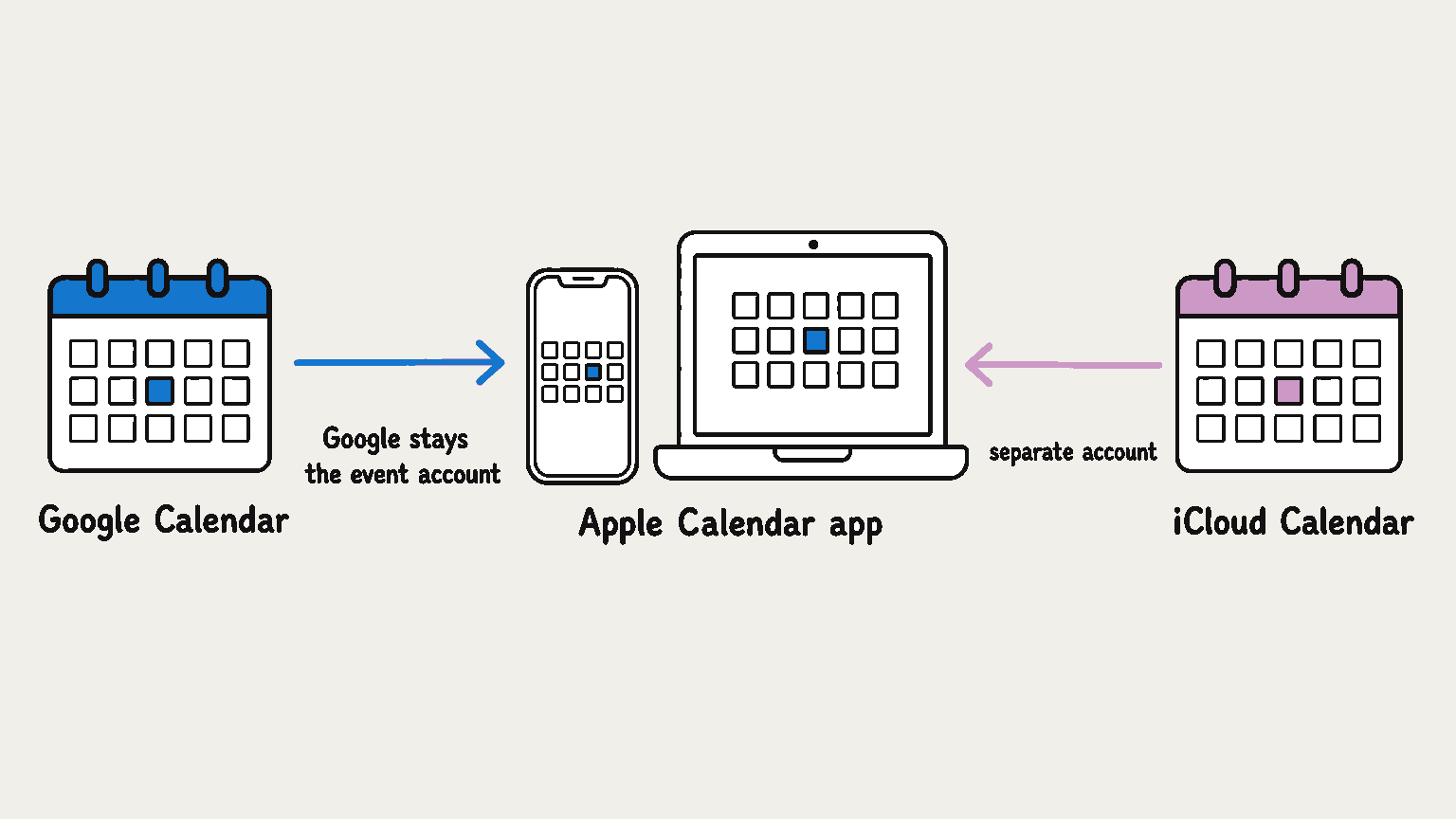
Add your Google account to the Apple Calendar app and turn on calendar access. Apple Calendar then shows the events stored in Google Calendar. If you have permission to edit a Google calendar, changes you make to its events in Apple Calendar sync back to the Google account.
This setup does not combine Google Calendar and iCloud Calendar. Apple Calendar is the app you use to see the schedule, while Google remains the account that stores those Google events.
Add Google Calendar to Apple Calendar on iPhone or iPad
The current route is the same on iPhone and iPad:
- Open Settings.
- Tap Apps.
- Tap Calendar.
- Tap Calendar Accounts.
- Tap Add Account.
- Choose Google.
- Sign in to the Google account that contains the calendar you want.
- When the list of Google services appears, turn on Calendars. Mail, Contacts, and Notes are optional.
- Open the Calendar app. On iPhone, tap Calendars at the bottom. On iPad, tap Calendars at the top left. Select the Google calendars you want to see.
On iOS 17 or earlier and iPadOS 17 or earlier, the route may be Settings > Calendar > Accounts > Add Account because Calendar had not yet moved under Apps.
If the Google account is already on the device, do not add it again. Go to Settings > Apps > Calendar > Calendar Accounts, open the existing Google account, and turn on Calendars.
Choose which Google calendars appear in Apple Calendar
A Google account may contain a family calendar, a school calendar, a child’s activity calendar, and calendars shared by other people. Connecting the account does not mean every one of them will be visible at once.
Open Apple Calendar. On iPhone, tap Calendars at the bottom. On iPad, tap Calendars at the top left. A checkmark means that calendar is currently displayed. Clearing the checkmark hides its events from your view without deleting the calendar or moving its events.
If a Google calendar is missing from that list, open Google’s calendar selection page on a computer. Check the calendars you want, select Save, and then refresh Apple Calendar. Google selects calendars under My Calendars and the Birthdays calendar by default. Other calendars may need to be selected there.
Make new Apple Calendar events save to Google
After the calendars appear together, decide where Apple Calendar should store a new event. Setting a default keeps new family events in the account the household expects.
On iPhone or iPad:
- Open Settings.
- Go to Apps > Calendar.
- Tap Default Calendar.
- Select the Google calendar where new family events should be stored.
The default applies to new events. It does not move events that are already in iCloud.
You can correct an event that went to the wrong place. Open the event in Apple Calendar, tap Calendar, and select the intended Google calendar. Before saving any new event, you can also check its Calendar field and choose the destination directly.
Add Google Calendar to Apple Calendar on Mac
You can connect the same Google account from inside the Calendar app on a Mac:
- Open Calendar.
- In the menu bar, choose Calendar > Add Account.
- Select Google, then click Continue.
- Complete the Google sign-in prompts.
- Make sure Calendar is enabled for the account.
- In Calendar, confirm that the intended Google calendars appear in the calendar list.
If the list is hidden, choose View > Show Calendar List. A checked calendar is visible in the current view.
If you create family events on the Mac, choose Calendar > Settings > General, open Default Calendar, and select the intended Google calendar. This changes where new events are stored. Existing iCloud events stay where they are.
Mac also lets you control account refresh. Choose Calendar > Settings > Accounts, select the Google account, and use Refresh Calendars to choose an available refresh option. To request an immediate refresh, choose View > Refresh Calendars.
Apple Calendar’s older Delegation setup can conflict with the account connection above. If that legacy method is still enabled, go to Calendar > Settings > Accounts, select the Google account, click Delegation, and clear the delegated calendars before using the standard Google account connection.
Confirm that the connection works in both directions
Seeing the Google account and its calendars confirms that the account is present in Apple Calendar. Generic calendar names alone do not confirm which account is connected. One temporary event gives you a better check:
- On a computer, open Google Calendar and create an event called Calendar sync test in the Google calendar the family plans to use.
- Open Apple Calendar and make sure that Google calendar is selected for display.
- Find the test event in Apple Calendar.
- Change its time in Apple Calendar, keeping its Calendar field assigned to the same Google calendar.
- Refresh Google Calendar on the web and confirm the new time appears there.
- Delete the test event when you are done.
If the calendar is shared with you as view-only, the event can appear in Apple Calendar but cannot be edited. In that case, visibility is the correct result. Your access is set by the Google calendar’s sharing permissions.
What this connection does not do
Connecting a Google account gives Apple Calendar a live view of Google-hosted events. It does not:
- merge a Google calendar with an iCloud calendar;
- move existing iCloud events into Google Calendar; or
- make every Google Calendar feature available in Apple Calendar.
Google event email notifications, creation of new Google calendars, and Room Scheduler are unavailable in Apple Calendar. Use Google Calendar when you need one of those features. You can still use Apple Calendar for the ordinary viewing and editing that the connected calendar allows.
Fix a Google calendar that is missing or stale
Work through these checks in order. Each one tests a different part of the connection.
1. Check that calendar access is on
On iPhone or iPad, go to Settings > Apps > Calendar > Calendar Accounts, open the Google account, and make sure Calendars is on.
On Mac, choose Calendar > Accounts, select the Google account, and make sure Calendar is checked.
2. Check that the calendar is visible
Open Apple Calendar. On iPhone, tap Calendars at the bottom. On iPad, tap Calendars at the top left. On Mac, use the calendar list. Make sure the missing Google calendar has a checkmark. If its name is absent altogether, use Google’s calendar selection page, save the selection, and refresh Apple Calendar.
3. Refresh the calendar
On iPhone, open Calendar, tap Calendars at the bottom, and swipe down on the calendar list. On iPad, tap Calendars at the top left, then swipe down on the list.
On Mac, choose View > Refresh Calendars. If updates repeatedly seem stale, review the Google account’s Refresh Calendars option under Calendar > Settings > Accounts.
4. Check the history window when only older events are missing
On iPhone or iPad, go to Settings > Apps > Calendar > Sync and inspect the selected event-history range. A limited range can make older events disappear while current ones continue to work.
Run the temporary-event check again after changing a setting. It tells you whether the account, display choice, and write destination now agree.
If you meant showing iCloud events in Google Calendar
That is the reverse direction, and the account setup above does not do it. Apple can create a Public Calendar link for an iCloud calendar. Compatible calendar apps can subscribe to that link, but subscribers receive a read-only view and only the owner can change the calendar.
A public subscription link is a poor shortcut for a private family schedule. It also does not create the editable account connection described above. If the household needs shared editing across Apple and Android devices, choose one shared calendar every participant can edit from their device and use that calendar as the home for the events.
Where Babs fits after the calendars are connected
Calendar sync helps once an event exists. It does not find schedule details in a school newsletter or coach email.
Babs is a family operating system that connects to Gmail, learns the family context around children, schools, and activities, and surfaces possible events and to-dos for a parent to review. An accepted event can be added to Google Calendar or Apple Calendar in one tap. The chosen calendar stays the schedule home.
Babs does not connect Google Calendar to Apple Calendar, merge their accounts, or silently copy events between them. It handles the earlier step of finding schedule details that have not reached the calendar yet. Babs is a free, waitlist-based iOS app.
Keep one event account as the household’s schedule home, set its calendar as the default for new events, and use Apple Calendar as the view when that is more convenient.
Related articles

Family life · Babs
The best family photo sharing app for your family’s rules
Compare FamilyAlbum, Google Photos, Apple Photos and Amazon Photos by who can view, add or remove pictures, device needs, storage, prices and data practices.
Family life · Babs
An Ollie alternative for your family's school-and-activity week
Ollie closes November 6, 2026. Keep Google Calendar events in place, handle Ollie-only reminders separately, and learn Babs's setup and sharing limits.