Email to calendar: add events to your calendar without a ton of manual work
By Babs Team · · Updated · 11 min read

Turning one email into a calendar event takes a few clicks. Keeping a family calendar current when dates are scattered across school newsletters, coach updates, registration confirmations, and reminder emails is the harder job. Gmail and Outlook both have useful shortcuts for the occasional message. When the volume is the problem, Babs can find relevant events and to-dos in connected Gmail and bring them to a parent for review. Approved events can go to Google Calendar, while accepted to-dos stay in Babs.
The quickest route depends on how often you do this
If a school or activity event may be anywhere in connected Gmail, Babs can do more of the work before you open the message. Babs finds possible events, pulls out the date, time, and location, and presents the details for review. One tap adds an approved event to Google Calendar. Babs can also separate a permission-slip deadline or registration form into a to-do in Babs instead of burying it in an event description.
The built-in Gmail and Outlook shortcuts are useful when you already have one message open and want to make one event from it. They create a draft, but you still have to find the message, start the conversion, check the details, and save it. Their automatic features cover certain structured confirmations such as flights, hotels, and tickets. Ordinary class newsletters and coach updates are less predictable.
That stream of family email is the problem Babs was built to handle. Babs is the family operating system for modern households. It looks across connected Gmail messages for relevant events, to-dos, deadlines, and changes, then gathers the useful ones for a parent to review. Your family schedule stays in the calendar you already use.
Babs finds the family details worth putting on the calendar
After you connect Gmail, you confirm context about your children, schools, and activities so Babs can learn what matters to your household. That context helps Babs surface the fourth-grade field trip in a weekly school bulletin and leave behind the kindergarten open house that has nothing to do with your family.
Babs also separates an event from the work that has to happen before it. The same school bulletin may include the trip date, a Friday permission-slip deadline, and a note to pack lunch. The trip belongs on the calendar. The permission slip is a to-do in Babs. The lunch note is useful on the day itself. Treating all three as one block of copied email text leaves the parent to sort it out later, usually at the exact moment nobody has time to sort it out.
| Detail in the email | Where it can go |
|---|---|
| Fourth-grade field trip, Tuesday from 8:30 a.m. to 2 p.m. | A possible calendar event |
| Permission slip due Friday | A to-do in Babs with a deadline |
| Pack a sack lunch | Context to check before the trip |
| Kindergarten open house | Left out if your family has no kindergartner |
When Babs presents a possible event, you can review the details and edit anything that needs correcting. If the message needs a closer read, you can open the source email and check the school's or coach's wording for more context. Once the event looks right, you approve it. You decide what reaches the calendar.
The job continues after the first message. If a later email moves fourth-grade lacrosse practice from 5 p.m. to 6 p.m., Babs finds and flags the new details. A parent can review the update and keep the calendar current, without having to remember which version came through last.
The same approach keeps the work around the schedule from disappearing. Babs can organize accepted to-dos by child and deadline and send reminders for follow-through, so the registration form does not vanish behind the event it belongs to.
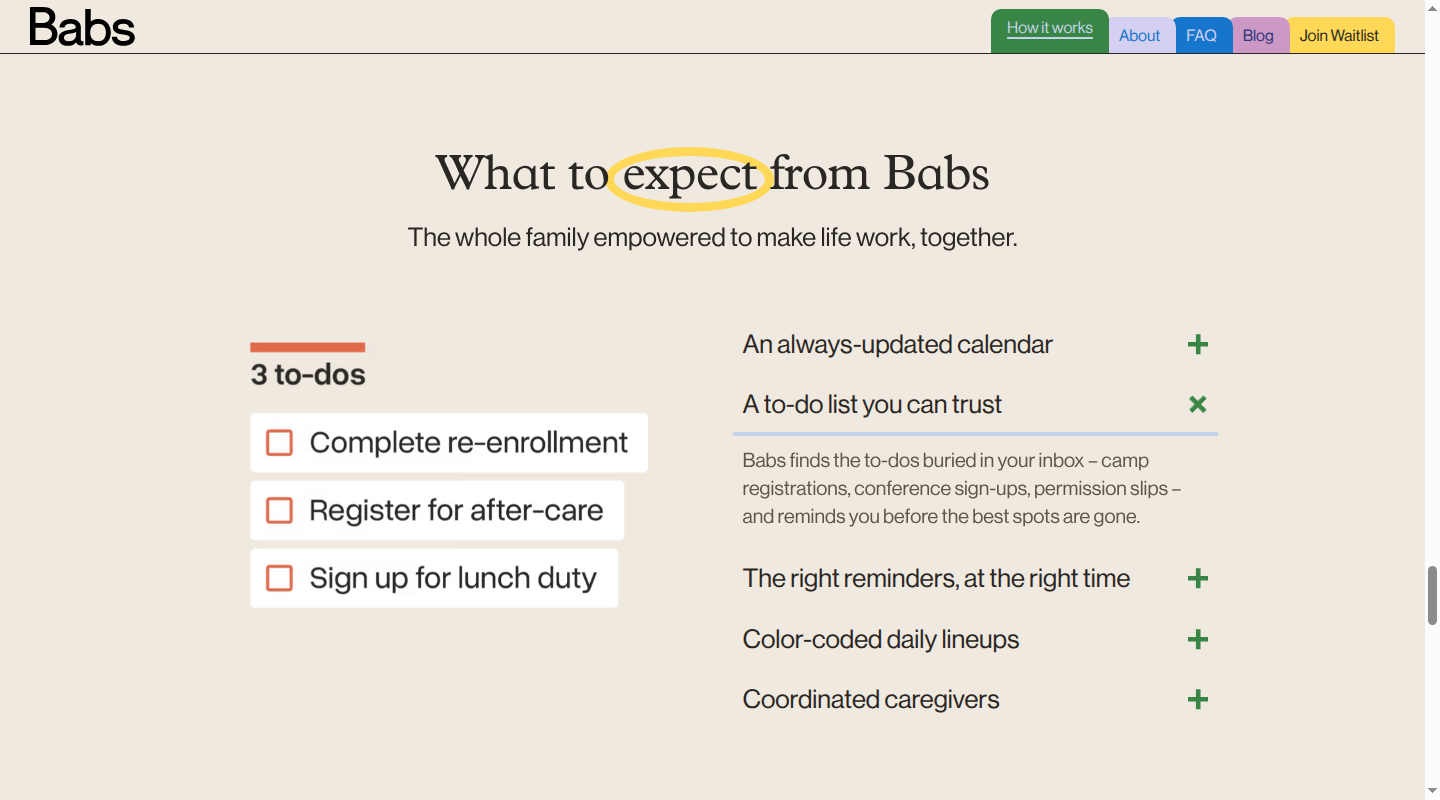
Each parent gets a separate login and sees the household's suggested events and to-dos, along with the Lineup, a preview of who needs to be where and when in the week ahead. Babs is free, in private beta, and available only on iOS. You can connect Gmail or a shared family Gmail account, and approved events can go to Google Calendar.
Using Babs with Google Calendar and Apple Calendar
Your family's calendar can keep doing the job it already does. Babs handles the earlier part: finding a possible event in connected Gmail, preparing the details, and putting the decision in front of you. Reviewed events go to Google Calendar and also appear in the Apple Calendar app when that Google account is displayed there.
Using Babs with Google Calendar
If your family uses Google Calendar, Babs scans connected Gmail for school and activity details that have not reached the schedule yet. Babs also checks suggested events against the current calendar to reduce suggestions for events that are already there. You review a suggestion, edit it if needed, and tap once to add it. You do not have to open each email and use Gmail's Create event command one message at a time. The family Google Calendar guide covers shared-calendar setup and household access.
Using Babs with Apple Calendar
Babs finds a possible event in connected Gmail and presents it for review. After you approve it, one tap adds it to Google Calendar. If you display that Google account in the Apple Calendar app, the event appears there too. Babs does not write directly to calendars stored in iCloud or Outlook.
How to turn one Gmail message into a Google Calendar event manually
If you already have a message open and only need to convert that one email, Gmail's Create event shortcut is a useful manual fallback:
- Open the message in Gmail on a computer.
- Select More, the three dots above the message, then Create event.
- Confirm the date, time, calendar, and other event details in the Google Calendar tab that opens, then save it.
Gmail copies the email subject and message text into the draft. It also adds the message recipients as guests, which is useful when the email was already a conversation about the event. If it was a school distribution email, review the guest list before saving so you do not turn a personal calendar note into an invitation.
The shortcut saves you from retyping the subject and message body, but it begins after you find and open the right email. Other dates stay in the inbox, and a permission-slip deadline stays inside the event text. For school and activity messages in connected Gmail, Babs starts earlier by finding the event and separating related to-dos for review.
When Google Calendar adds events from Gmail automatically
Google Calendar's Events from Gmail feature handles several kinds of structured confirmations, including flights, trains, buses, hotels, restaurants, ticketed events, registrations, and some medical events. These entries can update when the underlying reservation changes. That supported update flow is tied to recognized confirmations. A later school bulletin or coach email that changes an event may not update the existing calendar entry.
Google documents this feature around structured bookings and confirmations. Ordinary school newsletters and coach emails do not fit that flow, even when they contain clear dates.
Google Calendar not adding events from Gmail: what to check
Before changing settings, identify what reached the inbox. Four messages can mention the same date and still take four different routes into Google Calendar:
- A structured confirmation: A flight, hotel, restaurant, ticket, registration, or supported medical confirmation may become an event through Events from Gmail. A camp registration confirmation may qualify if Google recognizes its format.
- A calendar invitation: An invitation follows the separate Calendar invitation settings. Under Settings > General > Event settings > Add invitations to my calendar, you can allow invitations from everyone, only known senders, or only after you respond in email.
- An ICS file: An
.icsattachment contains calendar data, but it is not an Events from Gmail entry. Google documents how to import an ICS file from Settings > Import & Export on a computer. An imported event is a copy and does not stay synced with the source calendar. - An ordinary email containing a date: A school bulletin, camp welcome note, coach change, or unsupported appointment confirmation does not become an event just because Gmail can read the date. Use Gmail's Create event shortcut for one open message, or use Babs to surface relevant family events and to-dos for review across connected Gmail.
Check Events from Gmail settings
On a computer, open Google Calendar > Settings > Google Workspace smart features. Select Manage Workspace smart feature settings, turn on Smart features in Google Workspace, and save. Back in the same Calendar section, check Show events from Gmail. Google says Events from Gmail is off by default in the European Economic Area, Japan, Switzerland, and the UK.
Check the account and how the message arrived
Google says automatic events do not appear when the email goes to a mailing list, you are copied on it, the email is redirected from another account, or it is not a supported confirmation. Events from Gmail also does not work for government accounts, Google Accounts with data-location restrictions, or Google Accounts without Gmail. Those limits explain why a medical appointment confirmation sent directly to your Gmail address may appear while a coach change where you are cc'd does not.
Check who can see the event
By default, only you can find an Event from Gmail, even when you share your calendar. Google's email-event visibility settings let you use the calendar default, keep the event private, or make it visible only to you. With Private, people who can edit the calendar can find the details, while people with view access see only Busy.
If the event exists in Google Calendar but another family member cannot see it, review the calendar and event sharing in the family Google Calendar guide. If it exists in Google Calendar but not in Apple Calendar, the email-to-calendar step worked; use the Google-to-Apple Calendar guide to check which Google account and calendars Apple Calendar is displaying.
Where Babs fits with ordinary family email
Babs can surface a relevant event or to-do from a school bulletin, a camp email Google does not recognize as a supported confirmation, a coach's time change, or an appointment email in connected Gmail. A parent reviews an event before adding it to Google Calendar. Accepted to-dos stay in Babs rather than becoming Google Tasks. The Google event also appears in the Apple Calendar app when that Google account is displayed there.
FAQ: Google Calendar not adding events from Gmail
Why is Google Calendar not adding events from Gmail?
First check Smart features in Google Workspace and Show events from Gmail. If both are on, confirm that the message is a supported confirmation sent directly to an eligible Gmail account. Calendar invitations follow invitation settings, ICS files need to be opened or imported, and ordinary emails with dates need a manual event or a review-before-add tool such as Babs.
How to turn an Outlook email into a calendar event
In classic Outlook for Windows, you can drag an email from the message list onto the Calendar icon. Outlook opens an appointment with the email subject and body already included. Add the date and time you need, then choose Save & Close.
This creates an appointment on your own calendar. If other people need an invitation, add them as attendees and Outlook will turn it into a meeting. Microsoft's appointment guide also covers Reply with Meeting, which starts an invitation to the sender, and Quick Steps for creating an appointment with the original email attached.
The exact command depends on the Outlook version, which is why advice written for classic Outlook does not always match new Outlook or Outlook on the web. The drag-to-calendar instructions apply to the classic Windows layout.
When Outlook adds events from email automatically
Outlook's Events from email feature can add supported flight, hotel, rental-car, and package-delivery information to the calendar. It works with Microsoft accounts in supported regions, including Outlook.com and Microsoft 365 accounts.
To manage it in Outlook on the web or Outlook.com, open Settings > Calendar > Events from email. You can choose whether supported items appear as summaries in email, on the calendar, or both. Events created this way are private by default, so details may stay hidden from people who can otherwise view the calendar.
As with Google's automatic feature, Outlook is looking for supported confirmation types and senders. A coach's note about practice moving an hour later is a different kind of message.
Share one event without sharing the whole family calendar
Sometimes a partner, another parent, or a grandparent only needs one event. In Babs, you can share an event card through a messaging app, and the recipient can add that event to Google Calendar or Apple Calendar without a Babs account or access to the full family calendar. It is a direct handoff for Saturday's tournament or next week's school performance. Later changes and RSVPs remain separate from the shared card.
Babs is free, in private beta, and available on iOS. If school and activity details keep reaching Gmail before they reach your calendar, join the Babs waitlist. Babs will bring relevant events, to-dos, and schedule changes to you for review, and you stay in control of what gets added.
Related articles
Family organization · Babs
A family meal planning app everyone can use
Compare AnyList, Plan to Eat and Cozi for shared meal plans, recipe imports, grocery handoffs, devices, household pricing and provider-described data practices.
Family organization · Babs
Best carpool app for parents: apps and shared sign-ups
Compare GoKid, Carpool Kids, Carpoolio and CarpoolConnect with Google Sheets and Forms, including driver slots, calendar sync, access and costs.