Google Calendar for family: a setup that stays clear
By Babs Team · · 13 min read
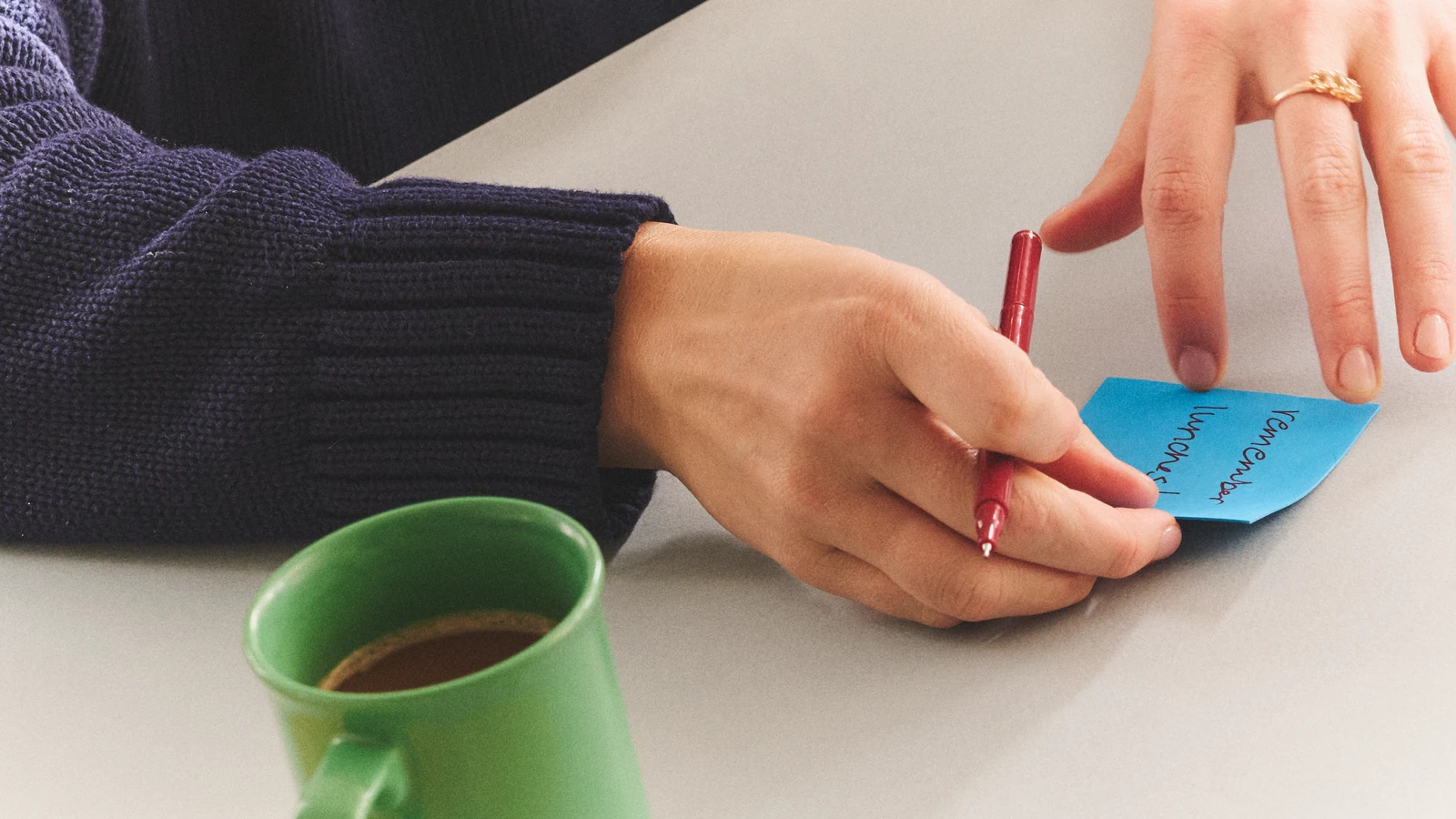
That fifth-grade field trip starts at 9 a.m., but the bus leaves at 8:15 and the permission slip is due Tuesday. Google Calendar can show the family when to leave, but first the details need to get out of the email. That is where Babs fits as the family operating system for modern households: Babs finds possible events, changes, deadlines, and to-dos in connected Gmail messages and presents them for parent review. Google Calendar or Apple Calendar remains the schedule home, while Babs reduces the reading and copying required to keep it useful.
Let Google Calendar hold the schedule while Babs finds what is missing
Google Calendar holds the agreed schedule and gives parents, children, and caregivers a shared view. Its Events from Gmail setting can also create events from some confirmations, such as reservations and tickets.
School and activity emails require more parent work to make sure the relevant details reach the calendar or to-do list. One message can contain an event time, an earlier arrival time, and a form deadline. A later TeamSnap email might move 4th-grade lacrosse practice from 5 p.m. to 6 p.m. Those details still need to reach the right place.
This is how Babs works with the calendar:
- A parent connects their Gmail or a shared family Gmail account. They confirm context about the children, schools, and activities that matter to the household.
- Babs scans those Gmail messages for possible events, schedule changes, deadlines, and to-dos related to the children's schools and activities, then gathers the relevant suggestions for a parent to review.
- The parent decides what to keep. After reviewing a suggested event, they can add it to Google Calendar or Apple Calendar in one tap.
- Google Calendar or Apple Calendar remains the home of the family schedule. Babs holds the suggested events and accepted to-dos, plus the Lineup, a preview of the week ahead that helps the household know who needs to be where and when.
For the field trip, the event might begin at 8:15 because that is when the family needs to act. The Tuesday permission-slip deadline can stay in Babs as a to-do, organized by child and due date. If a later school email changes the departure time, Babs flags the new detail so a parent can review it and keep the calendar current.
Each parent gets a separate Babs login. Both can see the household's suggested events and to-dos plus the Lineup, so information found in Gmail does not stay with the parent who happened to open the message.
Choose the right kind of shared Google Calendar
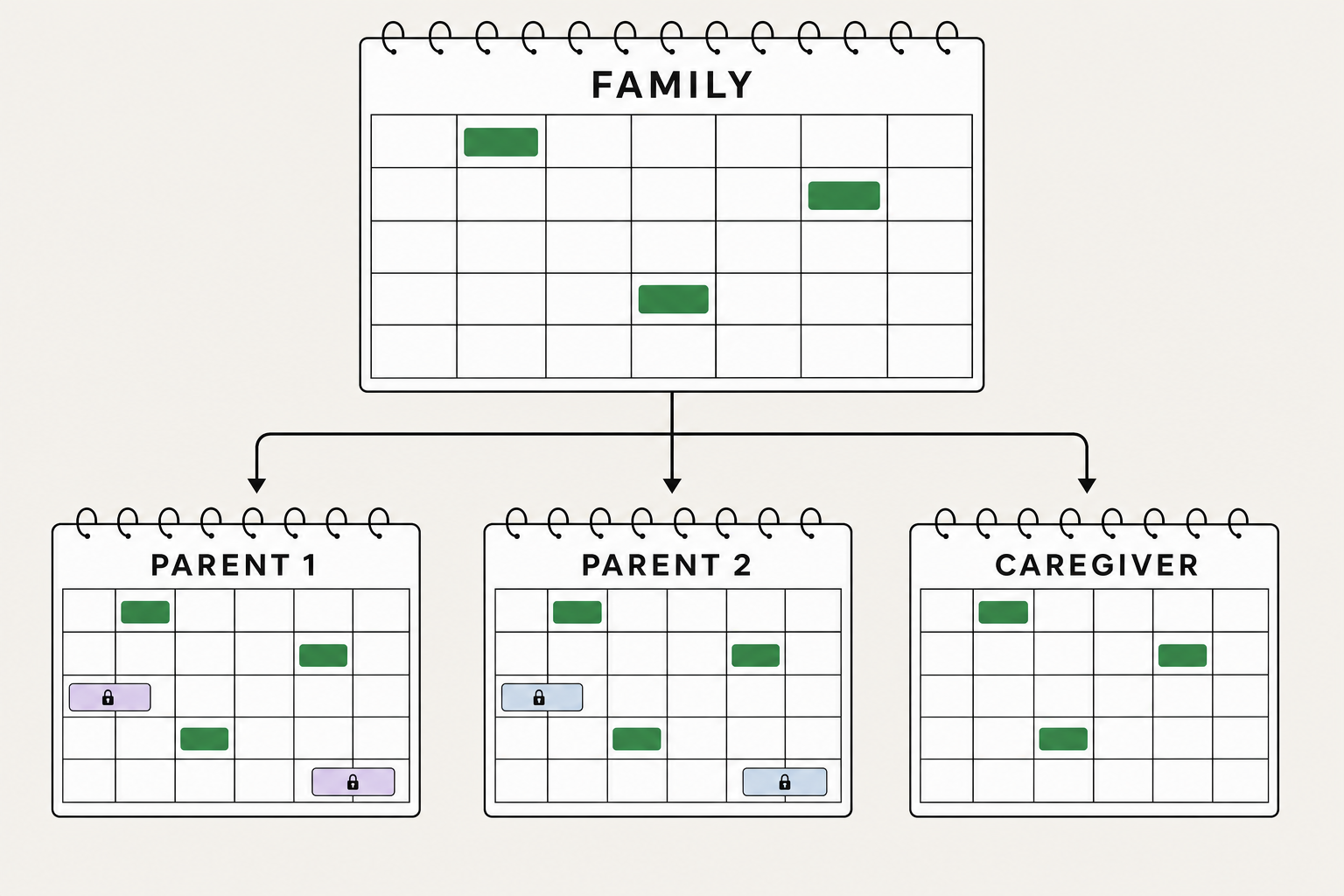
Google gives families two routes. The automatic Family calendar is created when someone sets up a Google family group. A custom shared calendar follows the ordinary Google Calendar create-and-share route: one Google account owner creates a new calendar and shares it directly with the people who need access. Membership and permissions work differently.
Automatic Family calendar: shared membership and equal control
Google creates a calendar called Family when someone sets up a family group. A family group can include six people total, all using personal Google accounts in the same country. Everyone in the group can change events, rename the calendar, and manage sharing. You cannot reduce one family-group member to view-only access.
The family manager can share the calendar with a grandparent, sitter, or other person outside the group from Google Calendar on a computer. Google gives a new external share edit access by default, so change that person to See event details when they only need to read the schedule.
Custom shared calendar: individual permissions and one owner
A custom calendar has one owner who chooses view, edit, or sharing access for each person. It fits co-parents, caregivers, and households whose schedules cross Google family groups.
A Google family group also connects services such as Family Link and Google One. A person can belong to only one family group at a time, and Google may restrict switching groups for 12 months. Work and school accounts cannot join. A custom calendar keeps a schedule-only decision separate from those services.
How a shared calendar sits beside personal calendars
Either route adds a shared calendar layer beside each person's existing calendars. The automatic Family calendar gives every family-group member full control, while a custom shared calendar lets one owner set different access for each person. Babs works alongside either the automatic Family calendar or a custom shared calendar. After a parent reviews a suggested event, they can add it to the Google calendar they choose. Google Calendar or Apple Calendar remains the home of the family schedule.
The automatic Family calendar does not gather everyone's existing calendars into one. It is a separate calendar layer. Joining the family group also does not expose a person's private calendar. Someone sees a personal calendar only when its owner shares it, and what they see depends on the permission granted.
Whichever route a household chooses, giving each event one home avoids maintaining duplicate copies. Thursday's soccer practice does not need four versions across a child calendar, two parent calendars, and the shared calendar. A second shared calendar can make sense when the audience changes, such as a co-parenting calendar both parents edit. Our broader family calendar guide covers the habits that keep any shared calendar useful.
How to set up the automatic Google Family calendar
- Sign in with the personal Google account that should manage the family group, then go to g.co/yourfamily and create a family group.
- Invite up to five other people. Each person needs to accept the invitation with the Google account they intend to use.
- Open Google Calendar and look for Family under My calendars.
- Create a test event and choose Family in the calendar field before saving it.
- Ask another family member to edit the test event from their account. This confirms that both people joined with the intended accounts and makes the calendar's full-control permission clear.
The family manager owns the calendar by default. A person who leaves the family group loses access. If the manager deletes the group, the calendar and its events remain until the calendar owner deletes them manually. Transfer ownership before retiring the owner's Google account.
How to create a custom shared family calendar
Google only lets you create a new calendar in a computer browser. Family members can then use it in the Android or iPhone app.
- Open calendar.google.com. Beside Other calendars, select Add other calendars, then Create new calendar.
- Give it a plain name such as Family and choose the household's time zone.
- Open Settings and sharing, find Shared with, and add each person's Google account.
- Choose the access each person needs. Another parent who schedules events usually needs Make changes and see event details. Give Make changes and manage sharing only to someone who should also control membership.
- Have each person accept the email invitation, then open the calendar on their own phone with the invited Google account.
- Create a test event from the second person's account and phone. Confirm that it appears on the first person's phone, then edit it there. Repeat in the other direction if both parents will add events. A test under one account proves account sync; this second-account test proves sharing.
A work or school administrator can block outside sharing, and access to that account may change with a job or graduation. A personal Google account is usually the more durable owner for a household calendar.
Match each person's access to what they need to do
Google offers five permission levels for a custom calendar:
- See only free/busy (hide details) shows blocked time without event names, tasks, or details.
- See event details shows event names, times, places, and descriptions without allowing edits. It suits a child or caregiver who only needs the plan.
- Make changes (see private events as free/busy) lets someone edit non-private events. A private event marked busy appears only as a busy block, and a private event marked free does not appear.
- Make changes and see event details lets someone edit events and see who else has calendar access. It suits a parent, co-parent, older child, or recurring caregiver who adds and corrects events.
- Make changes and manage sharing gives someone full control of events and sharing, including who can access the calendar.
Invite an occasional grandparent or sitter to the individual events they need. One event invitation does not expose the rest of the calendar.
Give a child the right kind of Google account
For a child under 13, or the applicable age in your country, the family manager can create a supervised personal Google account through Family Link. Use that account for Google Calendar. Children under that age can join a Google family group only when the family manager created their supervised account.
An older child can accept a family-group invitation with their personal Google account. For a custom calendar, share it directly with that account and choose See event details or editing access.
A Google Workspace for Education account cannot be managed through Family Link, and the school may prevent outside calendar sharing. Use a personal Google account for the household calendar.
Keep medical reasons, custody notes, payment details, and alarm codes off a broadly shared calendar. “Sam picks up Leo at 3:15” is enough for the household view; the private context can stay on the relevant adult's calendar.
Put the details where the family will use them
An event belongs on the Family calendar when another person needs to plan around it. A 6 p.m. game that needs a ride belongs there, as does a work trip that changes pickup. Private appointment details can stay on a personal calendar while “Taylor covers dinner and bedtime” goes on Family.
| Item | Where it belongs |
|---|---|
| School closure, half day, field trip, or concert | Family calendar |
| Practice, game, lesson, or meet | Family calendar when it affects rides or attendance |
| Work trip | Family-facing travel block; work details stay on the work calendar |
| Private appointment | Personal calendar, plus a separate Family event when household coverage changes |
| School or team calendar feed | Its own subscribed calendar layer |
| Permission slip, RSVP, uniform order, or snack duty | Babs to-do, organized by child and deadline |
Use the time the household needs to act. If the museum program starts at 9 a.m. and the bus leaves school at 8:15, the Family event starts at 8:15. Name the pickup person when the plan depends on them.
Keep school and sports feeds as separate layers
Schools and teams may provide a subscription link or ICS file. Leave a live subscription as its own layer for the full season or school year. The Family calendar can hold the commitments that affect the household.
A subscription can receive later changes from its publisher. An imported ICS file creates copies that do not continue following the source. Our ICS file guide explains when to subscribe and when to import.
Google's From URL option works only when the calendar publisher has made that calendar public, and the subscription must first be added in a computer browser. It does not grant anyone access to a private family calendar. Share a private Family or custom calendar directly with each person's Google account and choose their permission level. Do not make a household calendar public just to give someone a subscription URL.
Feeds rarely carry every piece of work around an event. A team feed may show Saturday's game while the Friday uniform deadline arrives in Gmail. A GameChanger or TeamSnap change sent to the connected Gmail account can give Babs a new detail to present for review. The parent can then update the existing Google Calendar event.
The calendar feed can stay subscribed in Google Calendar while Babs finds relevant school and activity details in Gmail.
Set notifications for each person
Google Calendar reminders are set per account. Two parents can see the same Family event and receive different alerts. A new Family calendar starts with the notification settings each person uses for their primary calendar, and Google does not notify the group just because someone creates, edits, or deletes an event.
Each person who needs an alert should set one on their own account. An event reminder handles the departure time. A to-do in Babs can hold the earlier action date, such as the permission slip due Tuesday or the cleats that need ordering before the first game, with reminders for follow-through.
Use Babs for the work before the calendar
A shared calendar improves visibility after someone has built the schedule. In a 2024 study of 322 mothers of young children, participants reported doing about 73% of the household planning, including anticipating needs and deciding what had to happen. The study used a convenience sample, but seeing a calendar and creating a reliable one are still different jobs.
Babs helps with the second job. A parent connects their Gmail or a shared family Gmail account and confirms household context about the children, schools, and activities. Babs scans the connected Gmail messages for possible events, changes, deadlines, and to-dos related to the children's schools and activities, then gathers the relevant suggestions for review. Nothing reaches the family calendar without the parent deciding it belongs there. After reviewing a suggested event, the parent can add it to Google Calendar or Apple Calendar in one tap. Accepted to-dos can be organized by child and deadline, with reminders for follow-through.
Two parents can use separate logins and see the family's suggested events and to-dos plus the Lineup. Google Calendar or Apple Calendar remains the schedule home. Babs keeps more of the reading, sorting, and follow-up from living with one parent.
Babs is free. Access is currently waitlist-based, and the app is available only on iOS today. Gmail is the email source Babs supports. Our family to-do list guide goes deeper on the work that needs a deadline rather than a place on the calendar.
Google family calendar questions
Can everyone in my Google family see my personal calendar?
No. The automatic Family calendar is separate. Joining a Google family group does not share a member's personal calendar. If you explicitly share a personal calendar, the recipient sees events according to the permission you choose and each event's privacy setting.
Can I use Google Family Calendar on an iPhone?
Yes. Sign in to the Google Calendar app with the account that belongs to the family group. The Family calendar appears in the menu, where you can turn it on or off. A custom shared calendar appears after the person accepts the invitation. Creating a new custom calendar still requires Google Calendar in a computer browser.
Why can a family member not see the shared calendar?
First confirm that they accepted the family-group or calendar invitation with the intended Google account. Then open the Google Calendar menu and make sure the Family or custom calendar is selected. For a missing custom-calendar invitation, verify that it was sent to the correct address. Ask the recipient to check spam and trash and search for the sender's email address. If the sharing email is still missing, remove the person from the sharing list and add them again. A work or school account may also block outside sharing.
What is the difference between a Google Family calendar and a shared calendar?
The Family calendar is created automatically with a Google family group, and every group member can edit events and manage sharing. A custom shared calendar follows the standard create-and-share route: one account owner creates the calendar and can give each person different access. It fits a household in which a child, caregiver, or co-parent needs view-only or event-editing access without control of sharing.
Is Google Family Calendar free?
Yes. There is no separate charge to create or use the Family calendar that comes with a Google family group, and a Google One subscription is not required. Each family member needs an eligible personal Google account.
Does Babs replace Google Calendar?
No. Google Calendar or Apple Calendar remains the home of the family's schedule. Babs finds possible events, changes, deadlines, and to-dos in Gmail and presents them for a parent to review. After review, the parent can add a suggested event to the chosen calendar in one tap.
The calendar should be the place the family trusts for where everyone needs to be. It should not require one parent to reread Friday's newsletter every time someone asks what is happening next week. Set up the shared layer once, keep personal details on personal calendars, and join the Babs waitlist when you want help finding what the schedule is still missing.
Related articles
Family organization · Babs
A family meal planning app everyone can use
Compare AnyList, Plan to Eat and Cozi for shared meal plans, recipe imports, grocery handoffs, devices, household pricing and provider-described data practices.
Family organization · Babs
Best carpool app for parents: apps and shared sign-ups
Compare GoKid, Carpool Kids, Carpoolio and CarpoolConnect with Google Sheets and Forms, including driver slots, calendar sync, access and costs.